Create and manage your club events
Publish an invitation, manage places and waiting lists, update details and keep participants informed.
Step by step
- Sign in as a club owner or administrator. Select club management in the workspace selector, then open News & headline → Create new → Event.
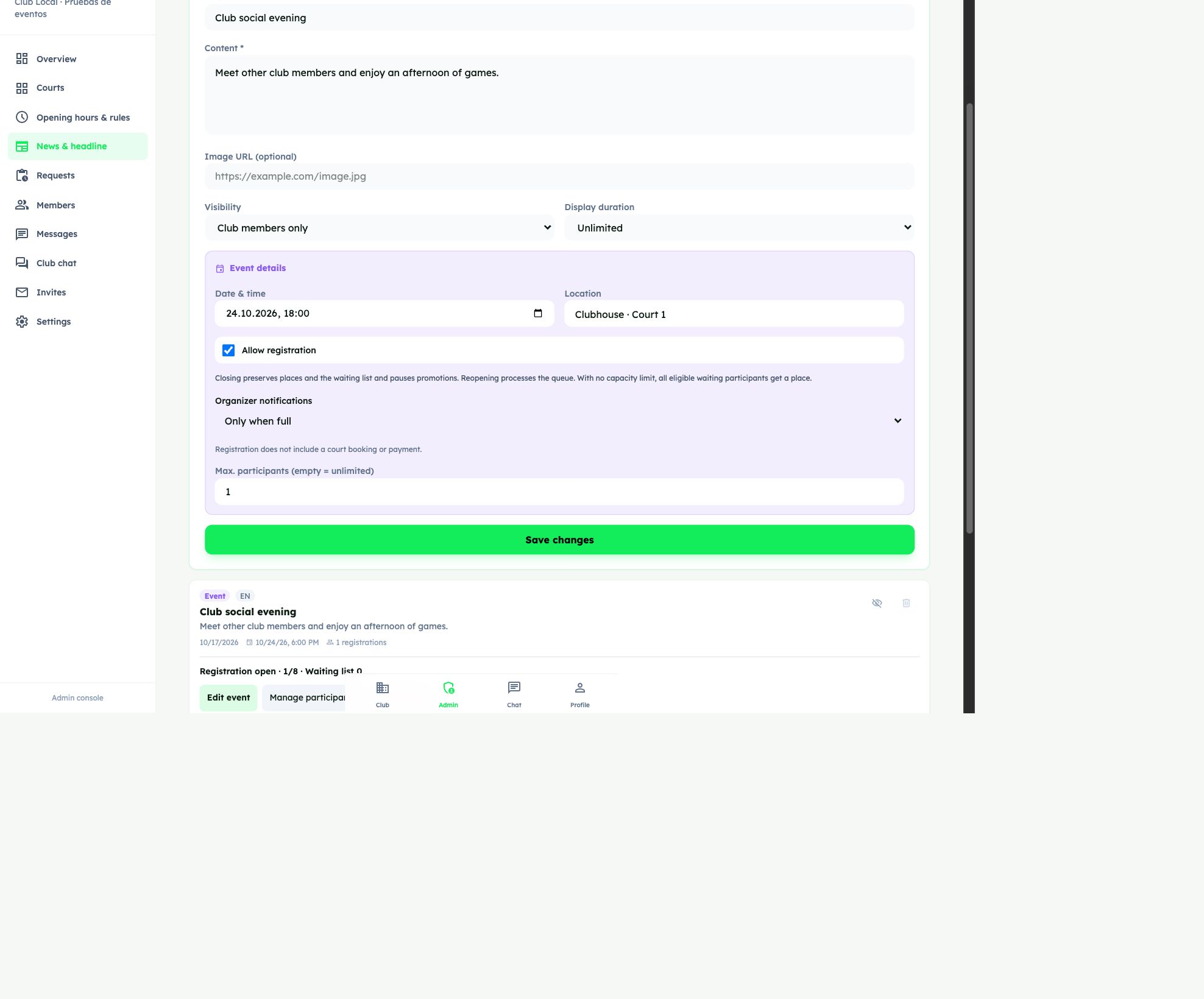
- Add a title, description, optional image, date/time and location. Enable Allow registration and set the participant limit, or leave capacity empty for unlimited places.
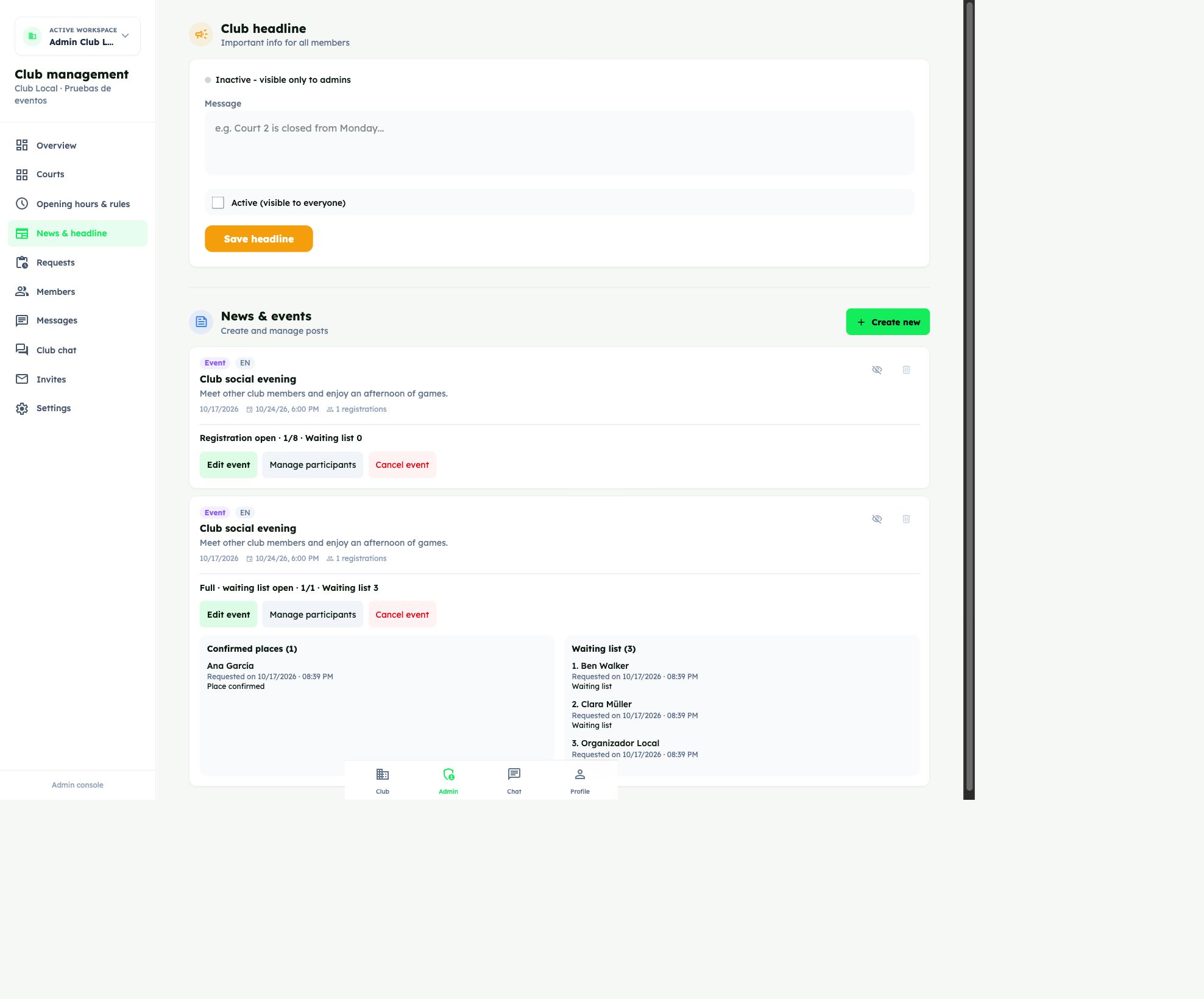
- Choose Organizer notifications, then select Create event. Afterwards, use Manage participants, Edit event or Cancel event on that publication.
Example screens
Real app screenshots with demo data. Select an image to view it at full size.
Frequently asked questions
Who can create and manage these events?
Club owners and administrators. The participant list is private to management: other players cannot access names or registration timestamps. Global editorial publishing requires a separate permission.
Where do I see confirmed and waiting participants?
Choose Manage participants on the event. Separate lists show confirmed places and waiting requests with names, request dates/times and status. Waiting requests show their order.
What can I edit?
Edit event opens the existing details. You can change title, description, image, date/time, venue, registration and capacity. Changing type or visibility is blocked once registration history exists.
Can I reduce or increase capacity?
You can reduce it to the confirmed count, but not below it. Nobody silently loses their place. Increasing capacity promotes eligible waiting users in order, provided registration is open and the event is neither cancelled nor started.
What does empty capacity mean?
Capacity becomes unlimited. If registration is open, all eligible waiting users receive a confirmed place. If closed, the queue stays until registration reopens.
Does closing registration cancel the event?
No. Turn off Allow registration to pause requests and promotions while keeping places and the queue. Withdrawals remain possible. Reopening processes the queue; use the explicit cancellation action to cancel the activity.
How do I cancel correctly?
Select Cancel event and confirm. Confirmed and waiting participants are notified, new requests and promotions stop, and history is retained. Hiding or deleting a publication with participants is not a substitute for cancellation. Events with registration history cannot be permanently deleted from this management screen.
Can I reopen a cancelled event?
No. Cancellation is final. You can correct text or an image, but cannot reopen or reschedule it or change its venue. Create a new event for a new invitation.
What if someone else edits the same event?
The app rejects saving an older version. Reload the event, check the current details and reapply your changes. Registrations are preserved.
Are all meetRackets users notified?
A club event invitation goes to active members except the author and those who opted out. It is not automatically broadcast to the entire platform, even when publicly visible. Authorized global editorial news is a separate flow.
Can I avoid a push for every registration?
Yes. Under Organizer notifications, choose Only when full —the default—, Joins, withdrawals and full capacity or Off. This event setting affects its managers. Each account can also disable its own event pushes.
Does turning organizer alerts off disable participant notices?
No. That setting only affects management alerts about joins, withdrawals and full capacity. Confirmed and waiting participants still receive the notices intended for them; their own preferences control their pushes.
Which notifications are sent and who receives them
| Notification | Who receives it and when |
|---|---|
| New club event | Active club members except the author, if New club events is enabled. No automatic platform-wide invitation is sent. |
| Place confirmed | The person who registers and gets a place. It confirms participation. |
| Waiting list entry | The person requesting the queue. It states that there is no place yet and includes their position. |
| Withdrawal confirmed | The withdrawing person. It confirms no remaining place or waiting position. |
| Place obtained from the queue | The promoted person, as soon as a place is confirmed. Includes the event, date, time and venue. |
| Date, time or venue changed | Confirmed and waiting participants. Shows the previous and new details. Minor text or image corrections do not generate this notice. |
| Cancellation | Confirmed and waiting participants are told that the event is cancelled. |
| 24-hour reminder | Confirmed participants only. Excludes waiting or withdrawn users and cancelled events. Confirmation suffices for joins or promotions in the final 24 hours; no redundant immediate reminder is added. Rescheduling updates the reminder. |
| Movements and full capacity | Current club owners and administrators, according to the event setting: off, full only or also joins and withdrawals. Former managers no longer receive management alerts. |
Configure notifications
Notifications are stored inside meetRackets and can also arrive by push. New club events controls invitations; turning it off stops generating these invitations for your account. Push for your events controls registration and organizer pushes; turning it off keeps in-app history. Push requires permission and a connected browser/device. Set up each device separately. Notices open the specific event or its management, depending on the recipient. These event notices are not sent by email, SMS or WhatsApp.
Missing a push? Check the in-app notifications and your current registration first. Check both event settings, browser/system permission and that device’s connection. A queued notice can be discarded if a withdrawal, cancellation or date/venue change has made it outdated.